
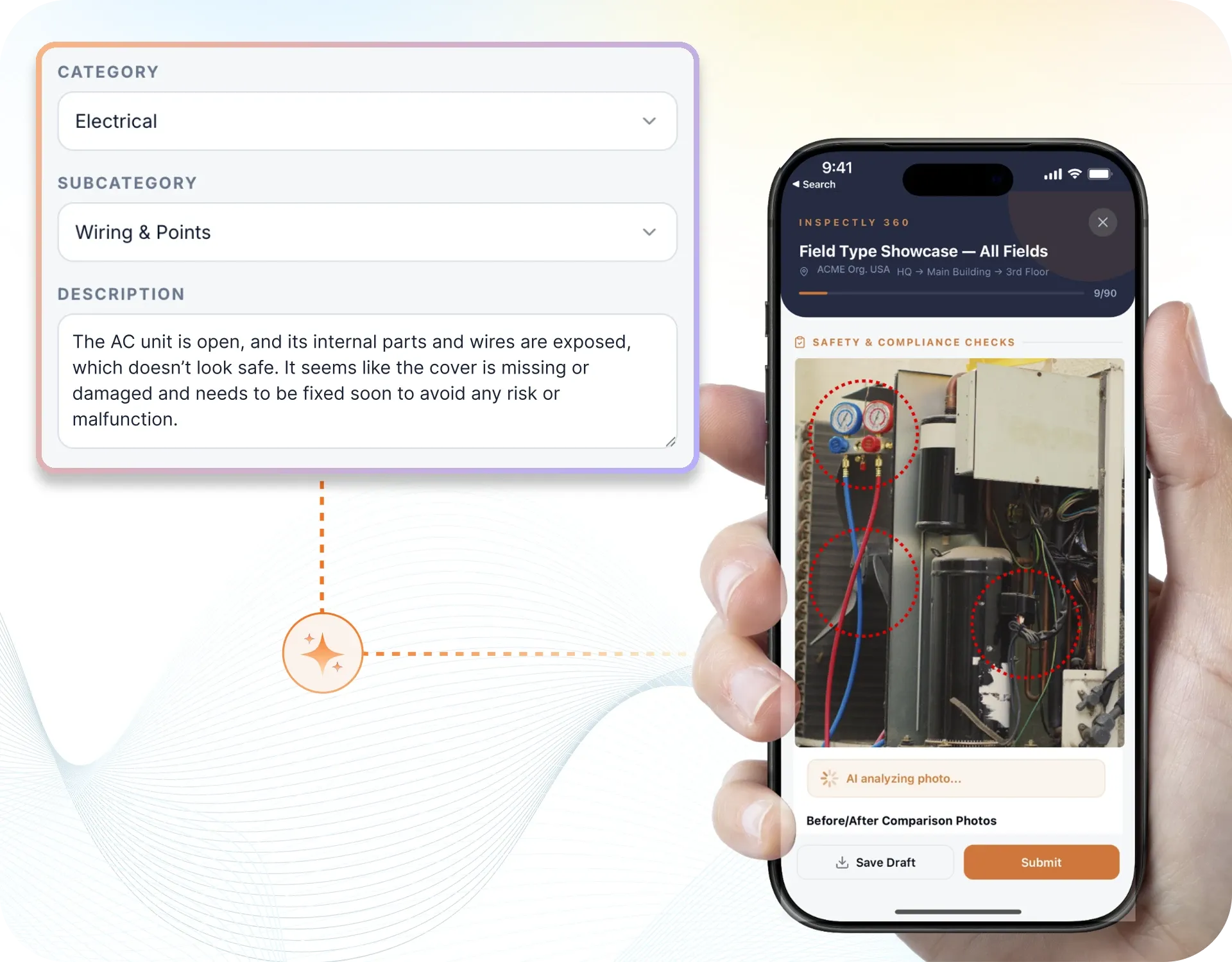
Take a Photo. AI Fills the Form
Your inspector takes a photo of any asset or defect. AI reads it and fills the inspection form automatically. No typing. No manual entry.

Courts Inspection App runs structured courts inspections across every site. Inspectors complete forms on a phone or tablet, capture photo and voice evidence on each courts, and raise corrective actions the moment something fails. Managers see courts compliance status, open issues, and performance across every site in real time.

Courts Inspection App runs a structured government building inspection covering fire safety systems, exits, and extinguishers, means of escape and signage, electrical and lighting condition, lifts and statutory plant checks, and accessibility and security, with a photo and a sign-off required on each point. Without a system, government building findings live on paper and in chat. A government building fault such as blocked exits and out-of-service fire equipment slips through. An audit then means rebuilding government building evidence from folders.
Courts Inspection App keeps one record per government building and per site, with photo evidence and a named sign-off. Each government building finding is tracked to verified closure. Estates and facilities teams see government building completion and overdue actions across the professional services portfolio. Every government building record proves what was checked, when, and by whom.
A comprehensive government building inspection covers the key areas that affect operations and compliance. Run courts inspections with structured evidence capture, issue tracking, and field-ready reporting. Your inspection should include sections for fire safety systems, exits, and extinguishers; means of escape and signage; and electrical and lighting condition, evidence capture, pass/fail or scoring criteria, corrective action assignment, and sign-off, so that nothing is missed and every inspection finding is traceable.
A consistent routine keeps courts inspections reliable across every site. Follow these steps to run an effective inspection:
A government building inspection covers fire safety systems, exits, and extinguishers, means of escape and signage, electrical and lighting condition, lifts and statutory plant checks, accessibility and security, and housekeeping and common-area standards. Estates and facilities teams capture photo evidence on each government building point. They work offline where signal is poor, then sign the government building round off. So every government building record proves what was checked, when, and by whom.
Templates align to fire safety NOC, accessibility standards.

Build the courts template with objective pass-fail criteria and schedule it to mobile teams.

Inspectors run the inspection with photo evidence on each finding, such as blocked exits and out-of-service fire equipment, overdue statutory checks, electrical or lighting faults, accessibility gaps, and failed items raise corrective actions.

Dashboards built on verified courts data reveal recurring patterns on the courts across every site.
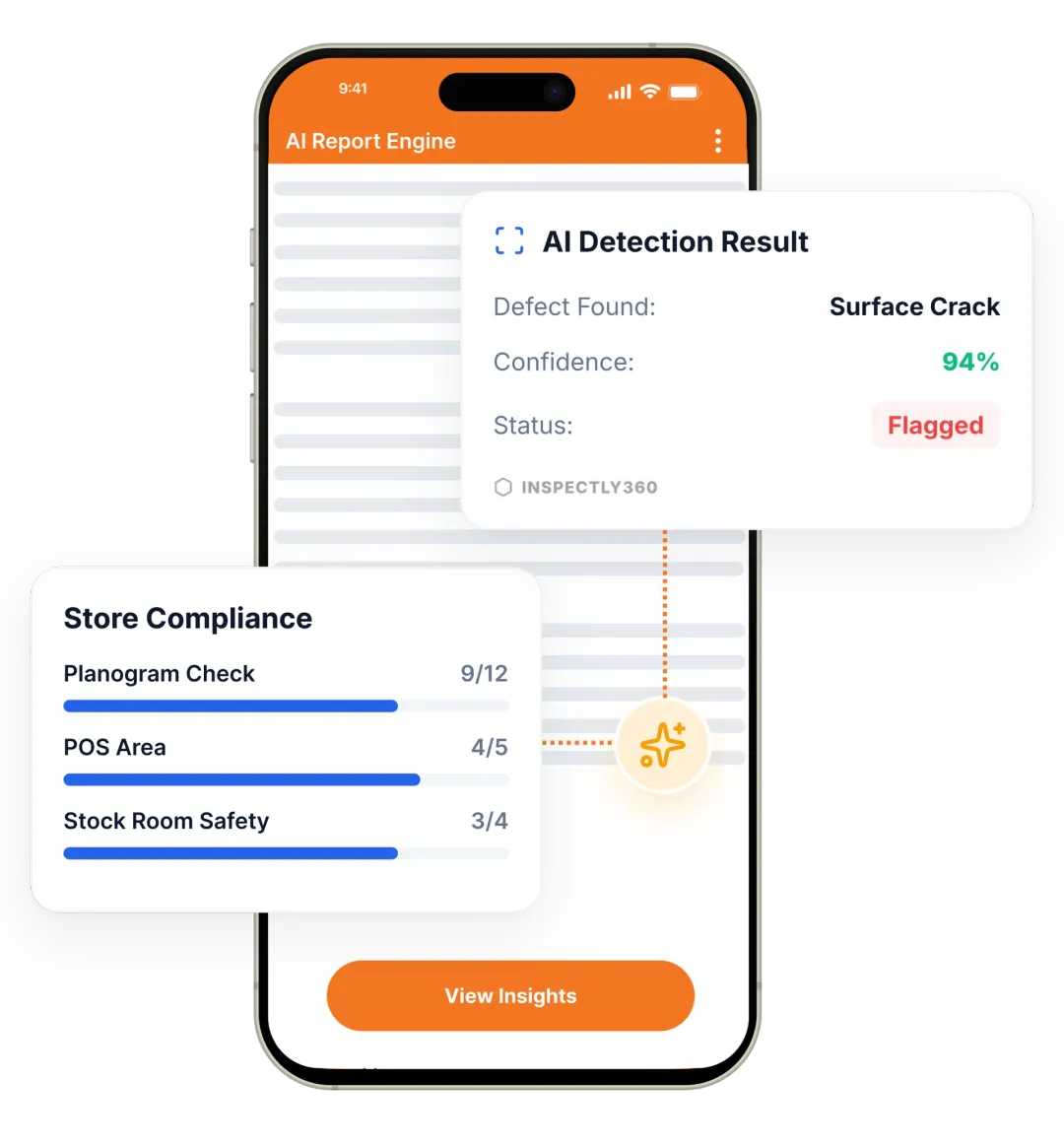
Everything your field team records during courts inspection, from photos and voice notes to sign-off, InspectWrk turns into a finished report automatically. Faster, more accurate, and without the retyping.
Your inspector takes a photo of any asset or defect. AI reads it and fills the inspection form automatically. No typing. No manual entry.
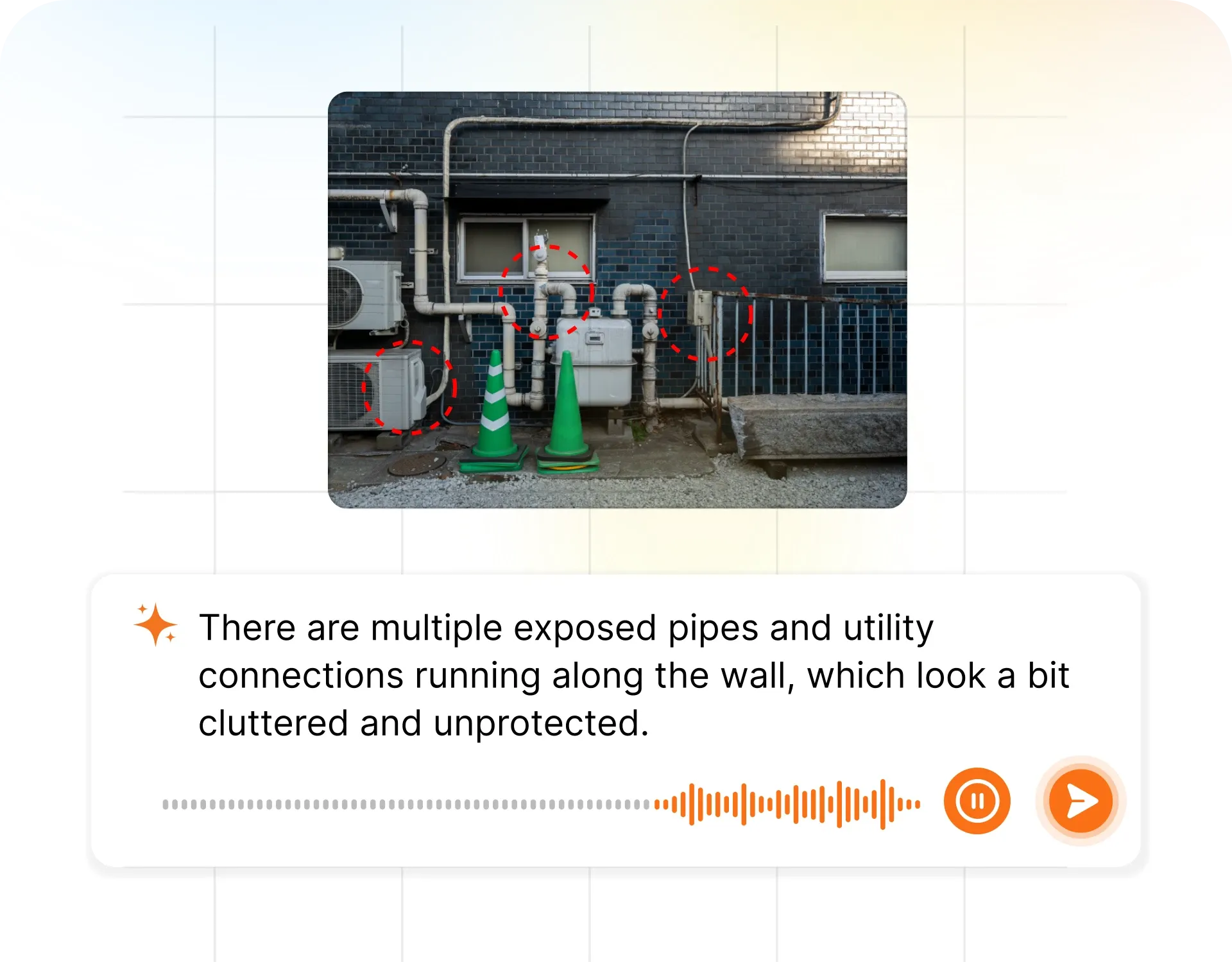
Inspectors speak their observations in any language. AI transcribes and fills the form in real time. Completely hands-free in the field.
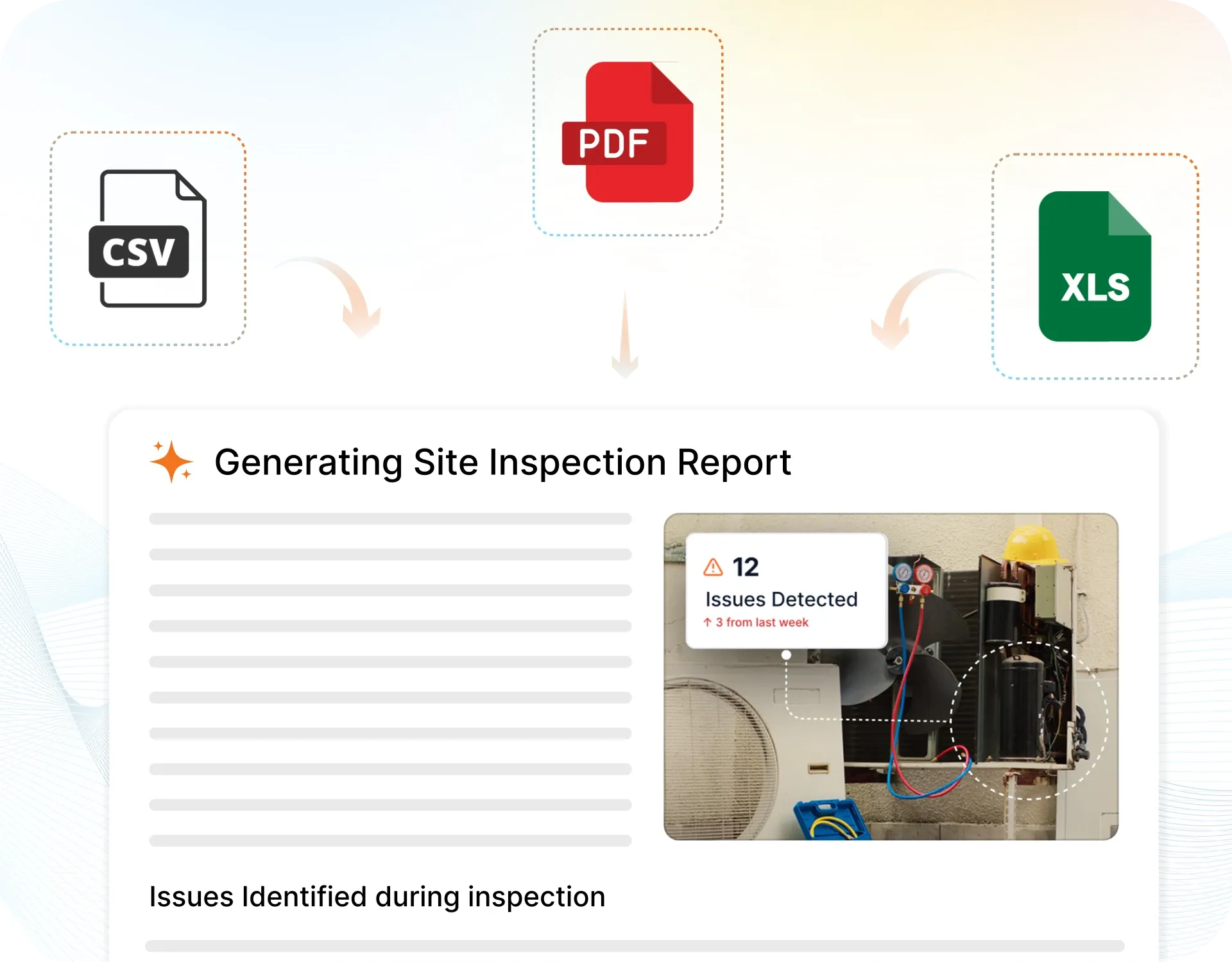
The moment an inspection is submitted, a branded PDF, Excel, or CSV report generates automatically. No manual work. No waiting.

InspectWrk integrates with the tools your team already uses, including Zoho, Microsoft 365, and SAP. No double entry.
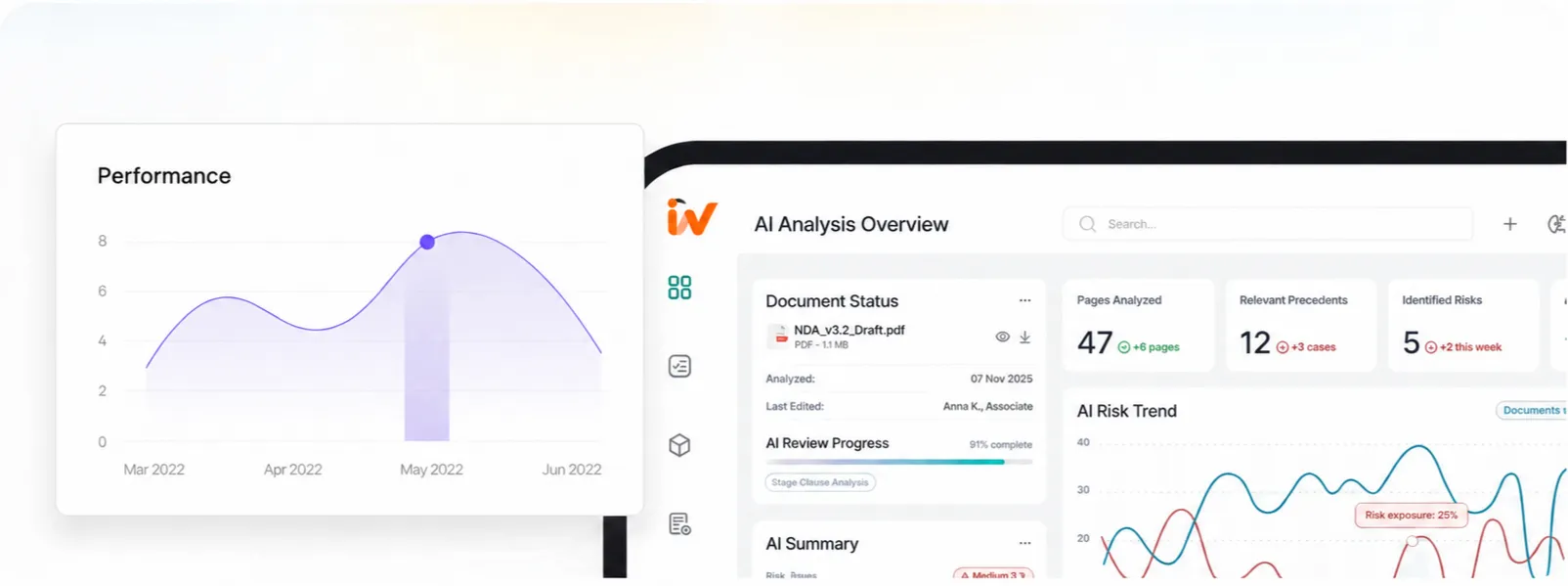
Your operations team sees completion rates, open issues, and compliance scores across all sites in real time. No chasing updates.
From data collection to compliance: see how teams use InspectWrk for every use case.
Capture field data once with digital forms that work even offline.
Explore use caseRun standardized inspections with photos, scoring, and instant reports.
Explore use caseConduct structured audits with evidence trails and pass or fail scoring.
Explore use caseLog hazards, near misses, and safety checks from any job site.
Explore use caseCatch defects early with repeatable quality checks and sign off.
Explore use caseReport incidents in the moment with photos and follow up actions.
Explore use caseInspect assets and keep condition and inspection history per asset.
Explore use caseRun preventive maintenance checks and log repairs with photo evidence.
Explore use caseStay audit ready with logged checks, timestamps, and shareable reports.
Explore use caseCourts work breaks down the moment evidence leaves the form. These are the problems Courts Inspection App is built to remove, and what the team gets back when it does.

A courts inspection is ticked off on a paper form. Weeks later someone asks whether the courts was actually checked, and whether blocked exits and out-of-service fire equipment, overdue statutory checks, electrical or lighting faults, accessibility gaps were looked at. Nobody can say for certain the courts passed.
Problem
Solution

A defect on the courts is handed to assigned contractor. A week later the courts defect is marked closed. Whether the courts work was done well, badly, or at all, nobody has verified.
Problem
Solution

There is no live view of courts status across sites. The first sign that something failed on the courts is a client call or an incident, by which point the problem is already public.
Problem
Solution
Courts Inspection App runs a structured government building inspection covering fire safety systems, exits, and extinguishers, means of escape and signage, electrical and lighting condition, lifts and statutory plant checks, and accessibility and security. Each point is captured on mobile with photo evidence against it, and a named inspector signs the round off before it can close. The same template runs on every site, so estates and facilities teams work to one standard rather than a version that drifts between locations. Every record proves what was checked, when, and by whom, so the evidence is ready long before an assessor asks for it.
The inspection targets the government building failures that matter most: blocked exits and out-of-service fire equipment, overdue statutory checks, electrical or lighting faults, and accessibility gaps. Left unchecked, a fault such as blocked exits and out-of-service fire equipment can mean downtime, a safety incident, or a failed audit, so every finding becomes an owned task with a deadline. It stays open until photo proof of the repair is reviewed, and repeat problems are flagged so estates and facilities teams fix the cause rather than the symptom. Prioritising by severity means the most serious issues are handled first, not whichever was reported loudest.
Courts Inspection App keeps government building checks aligned to fire safety NOC and accessibility standards. The photos each standard expects are required fields, so an incomplete check cannot be closed and a gap is caught before an assessor finds it. When a review is due, estates and facilities teams pull the records for the site in scope with one search instead of rebuilding them from folders. Retention and history stay searchable, so proof remains defensible at any point, not only on the day of an audit.
Yes. Courts Inspection App is offline-first: teams complete government building checks on iOS or Android with no signal, capturing photos and the evidence each check requires in the field. Each record syncs automatically when the connection returns, with its timestamp intact, and the same template runs on every site. So estates and facilities teams get a live view of what is complete, overdue, or failing per location, and a weak connection in a remote or low-signal area never costs a round or loses a photo.
Every completed government building inspection carries fire exit and extinguisher photo, asset service tag photo, and accessibility feature photo, a GPS location, a timestamp, and a named sign-off. Because the evidence is captured during the round rather than typed up afterwards, estates and facilities teams can show exactly what was checked, when, and by whom. When an assessor or client asks, the record exports in seconds as a branded PDF or a searchable history, so proof never depends on someone remembering where a photo was saved or which folder holds last quarter's records.
Explore other inspection and audit apps for professional services teams.
Last updated: